This guide explains how to set up and use Axvoid MCP Hub on a XenForo forum. It covers downloading and installing the add-on, activating its licence, preparing the connection, and connecting a compatible AI application. It also explains what the forum administrator does and what the connected member can access or propose.
Requirements
Before installing Axvoid MCP Hub, make sure your forum runs XenForo 2.3.0 or later and your server runs PHP 8.2.0 or later. You need an administrator account with permission to install and configure XenForo add-ons, a secure HTTPS connection, and an active monthly or annual Axvoid Private Products subscription. Both subscription plans let you download all Axvoid Private products. The AI application you want to connect must support MCP and OAuth.
Download and Install the Add-on
Once your monthly or annual Axvoid Private Products subscription is active, visit the Axvoid MCP Hub product page in the Axvoid Store and download the latest installation package available to you. Keep the ZIP file intact. Do not extract it or rename the add-on files.
Next, sign in to your XenForo Admin Control Panel as an administrator and open Add-ons. Use XenForo’s add-on installation or upgrade option to upload the ZIP file. Follow the XenForo steps to complete the installation, then confirm that Axvoid MCP Hub appears in your add-ons list.
If the Add-on Is Already Installed
If Axvoid MCP Hub is already installed, use the upgrade option in Add-ons and upload the current package. Do not uninstall the add-on before upgrading; this preserves its settings and connections. If XenForo offers Overwrite existing files, select it to complete the upgrade. Afterward, confirm the installed version and check file integrity in the XenForo Admin Control Panel.
Get Your Licence Keys and Activate the Add-on
In the account dashboard on the Axvoid website, open My Licences and select the Axvoid MCP Hub licence. Bind the licence to the domain where you want to activate the add-on, then follow the activation steps until you receive the User key and Secret key.
Next, open your forum’s XenForo Admin Control Panel and go to Setup → Options → Axvoid MCP Hub. Enter both keys in the licence fields and save your settings. Check the licence status and available rights, then enable the add-on and save again. Do not share your licence keys in screenshots or messages.
Set Up Member Accounts and Permissions
Use your forum administrator account to install and activate the add-on and configure its settings. Then choose a XenForo member account for connecting AI applications. You can use the same member account with ChatGPT and Claude, while keeping each application’s connection settings separate.
XenForo Member Permissions
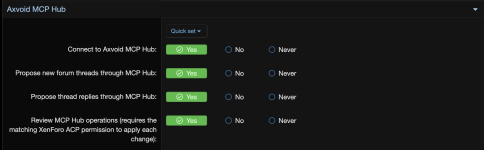
Give the connection account only the permissions it needs:
Requirements
Before installing Axvoid MCP Hub, make sure your forum runs XenForo 2.3.0 or later and your server runs PHP 8.2.0 or later. You need an administrator account with permission to install and configure XenForo add-ons, a secure HTTPS connection, and an active monthly or annual Axvoid Private Products subscription. Both subscription plans let you download all Axvoid Private products. The AI application you want to connect must support MCP and OAuth.
Download and Install the Add-on
Once your monthly or annual Axvoid Private Products subscription is active, visit the Axvoid MCP Hub product page in the Axvoid Store and download the latest installation package available to you. Keep the ZIP file intact. Do not extract it or rename the add-on files.
Next, sign in to your XenForo Admin Control Panel as an administrator and open Add-ons. Use XenForo’s add-on installation or upgrade option to upload the ZIP file. Follow the XenForo steps to complete the installation, then confirm that Axvoid MCP Hub appears in your add-ons list.
If the Add-on Is Already Installed
If Axvoid MCP Hub is already installed, use the upgrade option in Add-ons and upload the current package. Do not uninstall the add-on before upgrading; this preserves its settings and connections. If XenForo offers Overwrite existing files, select it to complete the upgrade. Afterward, confirm the installed version and check file integrity in the XenForo Admin Control Panel.
Get Your Licence Keys and Activate the Add-on
In the account dashboard on the Axvoid website, open My Licences and select the Axvoid MCP Hub licence. Bind the licence to the domain where you want to activate the add-on, then follow the activation steps until you receive the User key and Secret key.
Next, open your forum’s XenForo Admin Control Panel and go to Setup → Options → Axvoid MCP Hub. Enter both keys in the licence fields and save your settings. Check the licence status and available rights, then enable the add-on and save again. Do not share your licence keys in screenshots or messages.
Set Up Member Accounts and Permissions
Use your forum administrator account to install and activate the add-on and configure its settings. Then choose a XenForo member account for connecting AI applications. You can use the same member account with ChatGPT and Claude, while keeping each application’s connection settings separate.
XenForo Member Permissions
Give the connection account only the permissions it needs:
- Connect to Axvoid MCP Hub: Allows an AI application to connect to the forum.
- Propose new forum threads through MCP Hub: Allows the connection to prepare new thread proposals.
- Propose thread replies through MCP Hub: Allows the connection to prepare reply proposals.
- Review MCP Hub operations: Give this permission to an administrator or trusted human reviewer who will review proposals. Applying each change also requires the matching XenForo administrator permission.
Connection Capabilities
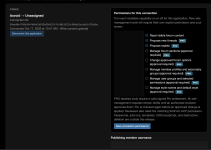
Configure each application connection separately in MCP Hub. Enable only the capabilities it needs:
- Read visible forum content: Read content the XenForo member is allowed to see.
- Propose new threads — PRO: Prepare new thread proposals.
- Propose replies — PRO: Prepare reply proposals.
- Manage forum sections — PRO: Prepare proposals to create or update forum sections.
- Change approved forum options — PRO: Prepare proposals to change supported forum options.
- Manage member profiles and secondary groups — PRO: Prepare proposals to update member profile details and secondary groups.
- Manage user groups and selected permissions — PRO: Prepare proposals to manage user groups and a limited set of permissions.
- Manage style names and default style — PRO: Prepare proposals to change style names or set the default style.
Each capability marked PRO requires a valid Pro entitlement. Site-management proposals remain pending until an authorized reviewer approves them.
Check Connection Readiness, Copy the URL, and Connect Codex and Claude
In your XenForo Admin Control Panel, open Setup → Axvoid MCP Hub connection dashboard. Under Before you connect, check that Connection keys are ready, MCP service shows Enabled, and Your forum account shows Permission granted for the account that will approve the connection. If the dashboard asks you to prepare keys, select Prepare connection. Then copy the Remote MCP URL from Copy the MCP server URL.
Connect Codex
Open the Codex dashboard and go to Plugins → MCPs. Add an MCP server or open the settings for the server you prepared for your forum. Enter the Remote MCP URL. Name the server Axvoid MCP Hub, or use another name that helps you identify it. Leave Bearer token and Headers empty, then save the settings.
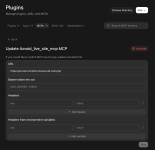
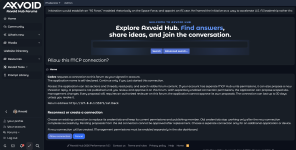
From the list of MCP servers in Codex, select Authenticate next to the Axvoid server. The forum’s authorization page will open. Review the connection request and permissions, and make sure you initiated the connection. The first time you connect Codex, create a connection for it. When reauthenticating an existing Codex connection, select that connection to keep its settings and publishing member.


Check Connection Readiness, Copy the URL, and Connect Codex and Claude
In your XenForo Admin Control Panel, open Setup → Axvoid MCP Hub connection dashboard. Under Before you connect, check that Connection keys are ready, MCP service shows Enabled, and Your forum account shows Permission granted for the account that will approve the connection. If the dashboard asks you to prepare keys, select Prepare connection. Then copy the Remote MCP URL from Copy the MCP server URL.
Connect Codex
Open the Codex dashboard and go to Plugins → MCPs. Add an MCP server or open the settings for the server you prepared for your forum. Enter the Remote MCP URL. Name the server Axvoid MCP Hub, or use another name that helps you identify it. Leave Bearer token and Headers empty, then save the settings.
From the list of MCP servers in Codex, select Authenticate next to the Axvoid server. The forum’s authorization page will open. Review the connection request and permissions, and make sure you initiated the connection. The first time you connect Codex, create a connection for it. When reauthenticating an existing Codex connection, select that connection to keep its settings and publishing member.
Connect Claude
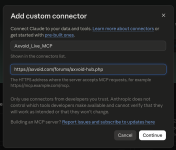
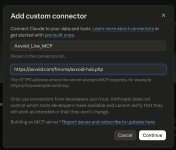
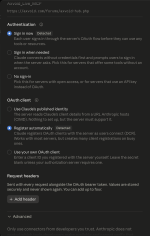
In Claude, go to Customize → Connectors → Add custom connector, then enter these settings:
- Connector name: Axvoid MCP Hub
- Remote MCP URL: The URL copied from your forum dashboard
- Transport: Streamable HTTP
- Authentication: Sign in now
- OAuth client: Register automatically
- Request headers: Leave empty
Continue to the forum sign-in page and review the connection request and permissions. Create a separate connection for Claude the first time you connect it. You can use the same XenForo member account you used with Codex. When reauthenticating Claude later, select its existing connection. If you use Claude through a Team or Enterprise plan, an organization owner may need to add the connector first; each member then connects their own forum account.
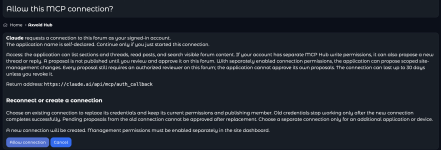

On the forum authorization page, select Allow connection after reviewing the request. When authentication is complete, return to the application and confirm that the server is connected. Authenticate each application separately: Codex and Claude use separate connections even when they use the same XenForo member account.
Test the Connection
After the server shows as connected in Codex, start with a read-only test. Ask Codex to list the forum sections visible to the connected XenForo member. Then ask it to read an accessible thread and search for a word or phrase in forum content. Check that the results match what the member can see when signed in to the forum. If an expected forum or thread is missing, check the member’s permissions and connection settings before trying any publishing or administration proposals.
Use the Reading and Search Tools
After the test succeeds, use the reading tools available to the connected member. Ask the application to list visible sections, list threads in a specific section, or read posts from an accessible thread. To search, ask it to find a word or phrase in forum content. Results follow the XenForo member’s permissions and the forum’s search behavior, so they may differ from what another member can see.
Prepare and Review Pro Proposals
To prepare a new thread or reply proposal, make sure Propose new threads or Propose replies is enabled for that connection, as needed, and that the appropriate publishing member is assigned. Ask the AI application to prepare the thread or reply. The proposal will be sent to the forum for review; it will not be published automatically.
You can also enable Pro administration capabilities when needed, such as preparing proposals to create forum sections, change supported options, or manage groups and styles. These proposals remain pending until an authorized reviewer opens Operations, checks the details, and approves or rejects them. Applying administration changes requires the reviewer to have the matching XenForo permission. Pro entitlement and the connection’s enabled capabilities are also checked.
Manage or Disconnect an Application
In the MCP Hub dashboard, you can review active connections, change the capabilities allowed for each connection, change its assigned publishing member, or disconnect an application you no longer want to use. When reauthenticating an existing application, select its existing connection to keep its settings and publishing member. Create a separate connection when you add another application or device that needs independent settings. Disconnecting an application stops it from using that connection; it does not delete threads or replies already published on the forum.
Troubleshooting
If the application cannot connect, check that the add-on is enabled, MCP service shows Enabled, you used the Remote MCP URL shown in the forum dashboard, and the XenForo member has Connect to Axvoid MCP Hub permission. If authentication fails or the connection between the forum and Codex or Claude does not complete, sign out of the application, fully close it, reopen it, sign in again, and test the connection.
If Pro tools are missing, check the licence status, the capabilities enabled for that connection, and the member’s permissions. If a forum or thread is missing from reading or search results, confirm that the connected member can see it in XenForo; MCP Hub follows that member’s access and the forum’s search behavior.
You can contact Axvoid support at any time or post a question in the MCP Hub discussion topic in the add-ons forum. Do not include licence keys or secret tokens in screenshots, posts, or support messages.
Add-on Limits
MCP Hub tools operate within the connected XenForo member’s permissions, the capabilities enabled for each connection, and the available licence. A connection cannot access content that its member cannot see. Forum threads, replies, and administration changes are submitted as proposals for review; they are not published or applied automatically.
Administration capabilities are limited to actions supported by the add-on. MCP Hub does not provide arbitrary PHP execution, unrestricted database access, destructive administration, add-on installation, or editing XenForo templates, CSS, or JavaScript.
Product Information and Support
For product details, downloads, and updates, visit the Axvoid MCP Hub product page in the Axvoid Store. If you need setup help or run into a problem, contact Axvoid support or post in the MCP Hub discussion topic in the Axvoid add-ons forum.

